
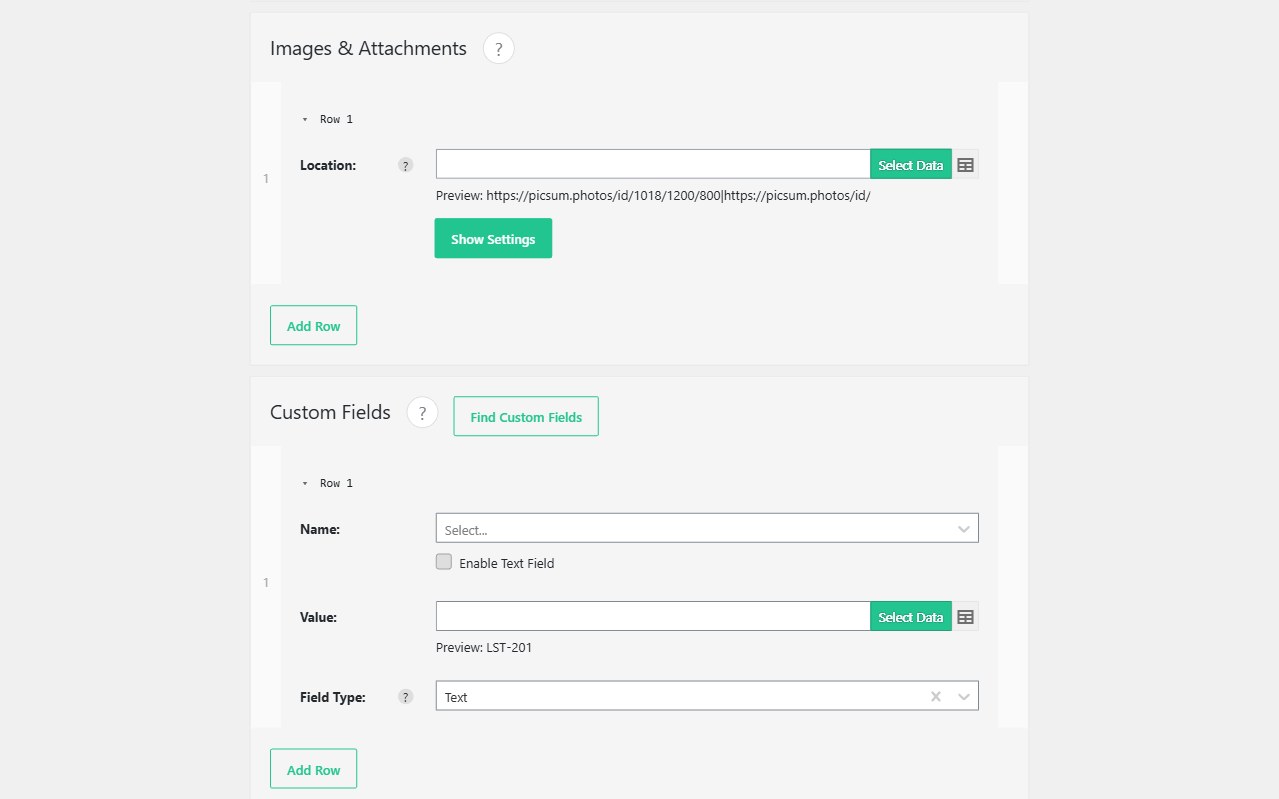
Gallery and relationship fields are where ACF imports usually fail. A CSV of image URLs is not a gallery until files live in the Media Library. A column of related slugs is not a relationship until those posts exist and IDs resolve. Import WP Pro downloads remote media and matches related content so ACF galleries, post objects, and relationships stay valid after a bulk import.
Also see the ACF importer. Repeaters are covered separately: ACF repeater importer.
Import CSV image URLs into an ACF gallery
ACF file, image, and gallery fields use Import WP’s attachment field type. For a gallery, put multiple sources in one value, separated by commas. Each URL, FTP path, or local file is fetched and attached; the first item can be treated as featured where the template allows it.
That is the usual supplier pattern: a feed with https://cdn.example.com/a.jpg, https://cdn.example.com/b.jpg and no ZIP of binaries. Import WP creates Media Library items, avoids obvious duplicates where the same file is already present, and can set alt text, captions, and titles from extra columns when you enable attachment meta.
Use this when you need to import CSV image URLs to an ACF gallery on listings, portfolios, or product extras — not only on native post thumbnails. Attachment behaviour: Import ACF data.
Import ACF relationship and post object fields
Relationship, post object, taxonomy, and user fields expect WordPress object IDs. Feeds almost never ship IDs. They ship SKUs, slugs, titles, or external references.
Map the related-content column, then resolve each value to a real object — by ID when you have it, otherwise by slug, name, or a reference you already imported. Comma-separated lists fill multi-select relationship fields. Import related posts before the records that point at them, or run a second pass once both sides exist.
This is how you import ACF relationship fields for “related properties”, “used in products”, or “authors” without opening every post in wp-admin.
Keep galleries and relations intact on update
Re-imports should not rebuild the Media Library from scratch or drop relationship links that editors added by hand. Use a unique identifier on the parent record. Update only the gallery or relationship field you mapped. Skip unchanged rows so bandwidth is not spent re-downloading the same remote images every night.
If the related post is created in the same project, import it with its own unique key first. Then the relationship column can point at a stable SKU or slug instead of a moving ID.
Docs for field formats (comma-separated attachments, ID lists): Import ACF data.