
Import or update existing attachments in the WordPress media library, including all core attachment fields, author, custom taxonomy terms and custom fields.
Creating a WordPress attachment importer
When creating an importer using ImportWP, to import attachments into the WordPress media library you need to select the Attachment option from the What are you wanting to import dropdown.
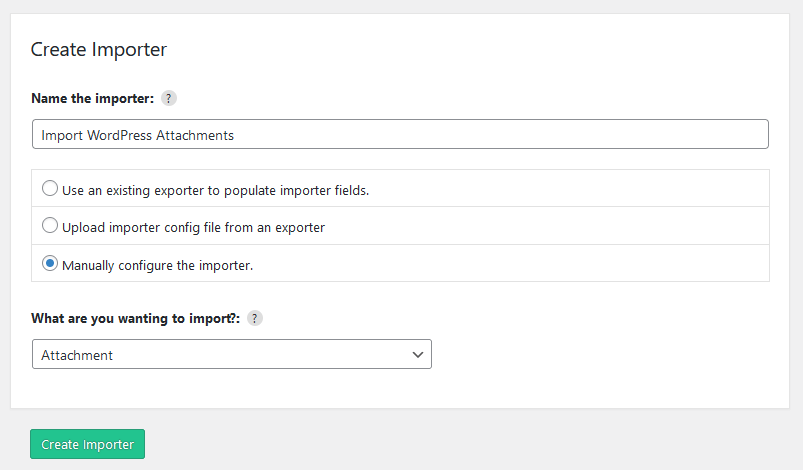
Attachment importer template
After creating the importer you you need to configure which sections of your import file need to be mapped to the attachment fields, this can be configured on the Template fields step, under the section titled Attachment.
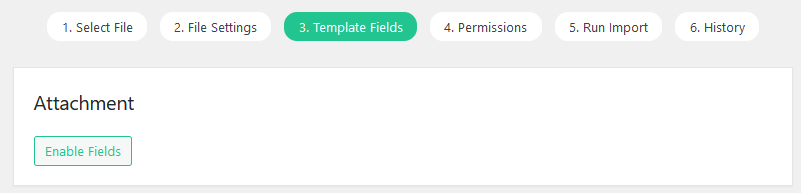
By default no fields are visible, you can enable or disable all attachment fields via the Enable Fields button, when clicked a list of available fields will appear that once selected will toggled their visability.
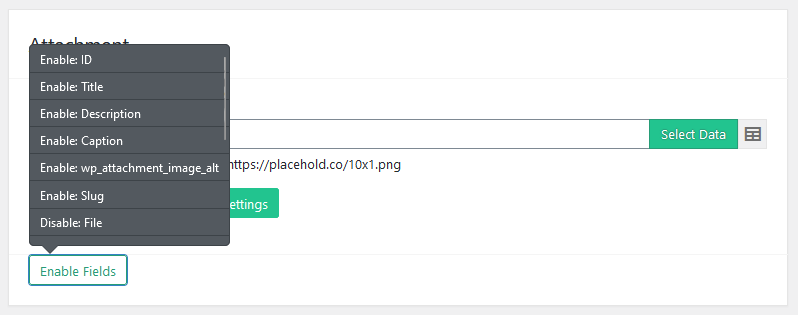
Attachment fields
| Options | Description |
|---|---|
| ID | The ID field is only used as a reference to existing fields |
| Title | Set the title of the attachment |
| Description | Set the main attachment description. |
| Caption | Set the attachment caption |
| Alt Text | Set the attachment alt text |
| Slug | Manually set the slug, otherwise it is generated based on the attachment title. |
| File | Upload or attach a new media file |
| Status | Set the post status from the dropdown of available statuses. |
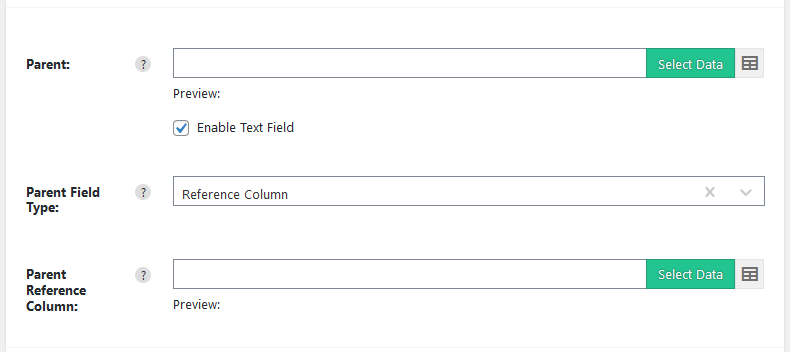
| Parent | Select the attachment parent from the dropdown field, or enable the text field to use the data selector tool to choose element from import file. |
| Order | Set the menu order for this attachment. |
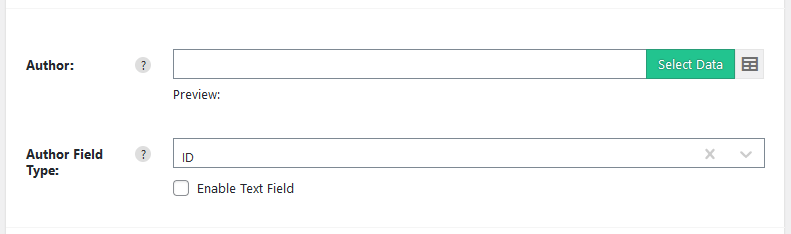
| Author | Set the attachment author from a dropdown of WordPress Users. |
| Password | Set the attachment password |
| Date | Set the published date |
| Allow Comments | Set if the attachment has comments enabled. |
| Allow Pingbacks | Set if the attachment allows pingbacks. |
Attachment Parent
Select the attachment parent from the dropdown field, or enable the text field to use the data selector tool to choose element from import file, depending on your chosen file element you can change the reference type via the sub field Parent Field Type of either (ID, Slug, Name or Reference Column).
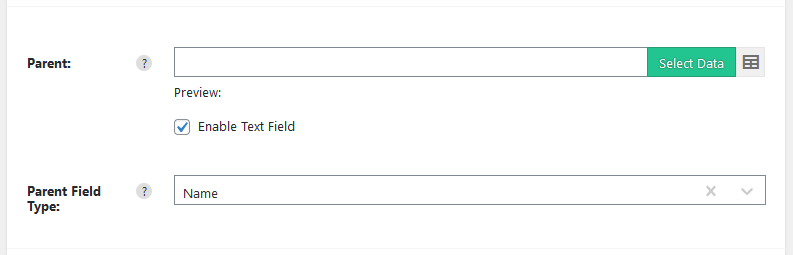
Selecting the reference column allows you to identify the parent record based on the Parent field value matching the Value set in the reference column.
Attachment Author
Set the attachment author from a dropdown of WordPress Users.
Attachment Taxonomies
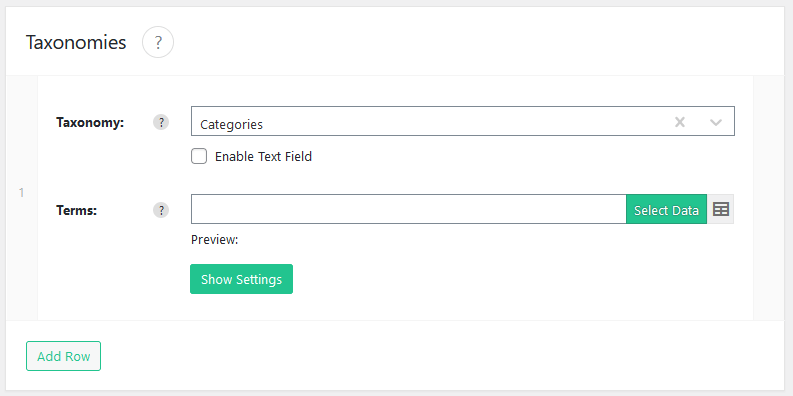
Attachment taxonomies allow you to import custom taxonomies terms that are linked to your attachments, if your plugin or theme registeres any taxonomies the Taxonomies tab will appear allowing you to setup as many taxonomies as nessessary for your import.
Read a Guide on how to import WordPress Taxonomies
Custom Fields
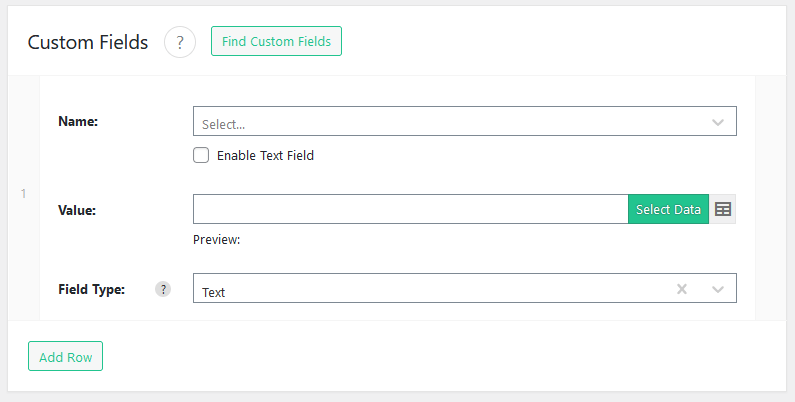
Custom fields allow you to import extra attachment data which your theme or plugins may use, this could be sub headings, or search engine keywords/descriptions for SEO plugins.
Custom fields keys are manually entered, or can be populated via a predefined list of popular values.
Updated 2024-03-13